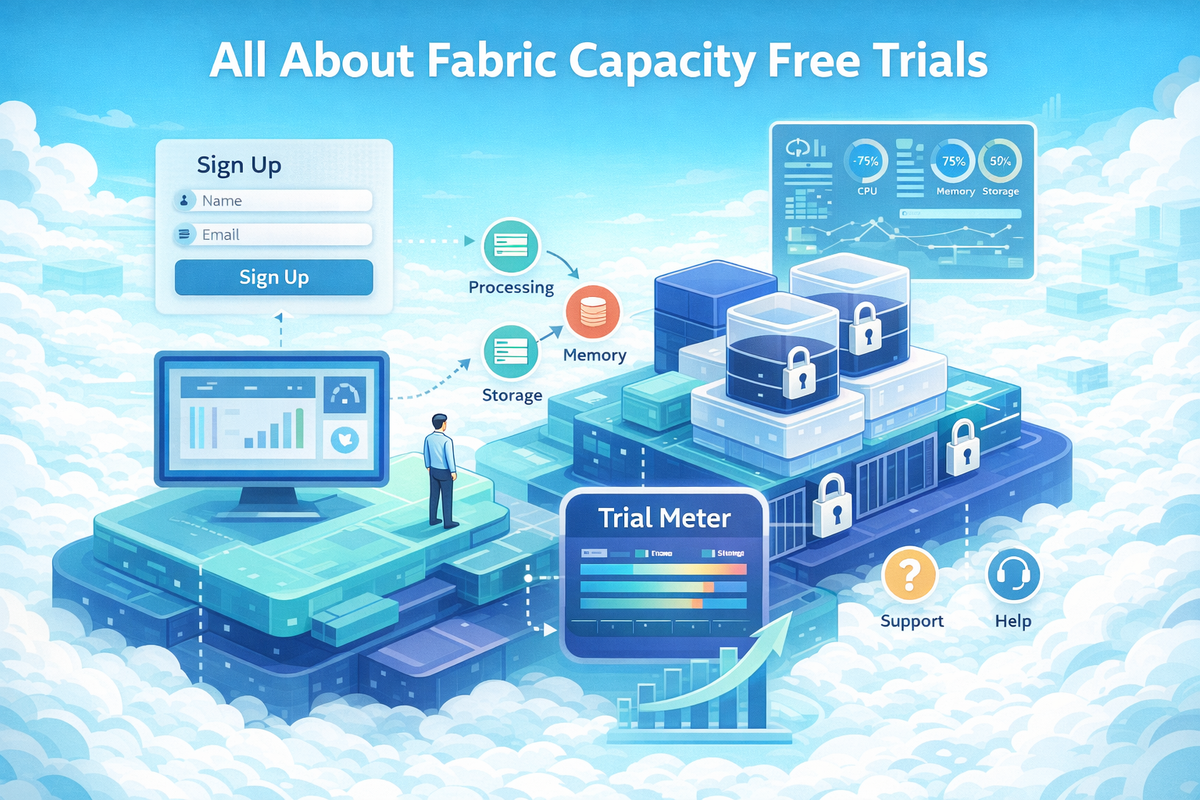
All About Fabric Capacity Free Trials
Microsoft Fabric capacity trials are limited, tenant-scoped, and easy to misuse. This article explains why trials disappear, how tenant governance works, and what options end users and administrators really have to access Fabric safely.

Introduction
Over the past months, I’ve noticed a recurring questioning pattern in the Microsoft Fabric Community around Fabric capacities and trial access, some typical examples are:
- What does it mean when the trial capacity is used up?
- Why can’t I create a Microsoft Fabric free trial?
- Why can’t I create a Fabric capacity using a personal account?
- What happens to my fabric items after the trail ends?
I decided to consolidate all the relevant information into this article — both from:
- the perspective of an individual user, who simply wants access to a Fabric capacity but doesn’t know which options are available
- the perspective of a tenant administrator, who may want to enable or restrict trial capacity creation (and needs to understand why this must be handled carefully)
The goal is simple: remove confusion, set expectations, and help you avoid irreversible trial-related mistakes.
Setting the Stage
Before talking about solutions, it’s important to understand the fundamentals about Fabric trial capacities as many users think for example that there is an unlimited (or at least generous) number of Fabric trial capacities available per tenant or that canceling a previously claimed trial “frees it up” so another user can start a new one... none of these are true! Microsoft enforces strict limits on trial usage to prevent abuse and manage resources, the most important rules to understand are the following:
#1. Trial Capacity Is Limited Per Tenant. Each Microsoft Entra tenant can activate up to 5 trial capacities. Once this limit is reached, no new trials can be started, even if previous ones were canceled.
#2. Canceled Trials Cannot Be Reactivated. If you cancel a trial, you cannot restart it using the same user or tenant. Microsoft does not allow reactivation of canceled trials.
#3. There is No Trial Option. After reaching the trial limit or canceling a trial, the “Start Trial” button will no longer appear. Instead, you’ll only see options to purchase Fabric capacity.
#4. Fabric items will be deleted 7 days after the trial expires. When the trial expires, access to the capacity is revoked immediately and all workspaces and items (lakehouses, notebooks, pipelines, etc.) enter a ~7‑day grace period during which they can be recovered by reassigning the workspace to a paid capacity, If no reassignment happens within that window, only Power BI–only content may remain accessible under Pro/PPU, the rest is permanently deleted and cannot be recovered.
This is precisely why, from a tenant administrator’s perspective, Fabric trial capacities must be handled with caution as they are limited, valuable, and powerful — each one provides 64 capacity units, which is more than enough to run meaningful workloads. Because of this, they cannot be treated as disposable or allocated recklessly.
For this reason, it is very common to see tenants where trial capacity creation is restricted or completely disabled, or the tenant has already consumed the maximum number of available trial capacities.
In both cases, the outcome for end users is that is a bit difficult to claim one free trial from directly from your school/work 😬 but fear note, I have a nice alternative! Keep reading 👇 (Spoiler alert 🚨 Go to End user's perspective / Option 2 – You Create and Control Your Own Tenant 😁)
End user's perspective
Now that we understand the rules, let’s talk about what you can actually do.
Option 1 – Your School or Company Provides a Trial
This is the most straightforward option, but also the least common in practice. It only works if you belong to an organizational tenant (school or workplace), trial capacity creation is allowed by tenant administrators, and the tenant has not already consumed all five available Fabric trial capacities.
In real-world enterprise tenants, this combination is rare — but it does exist, and it is still worth exploring. Your next step should be to contact your school or workplace tenant administrator and explain why you need a Fabric trial capacity and what you plan to achieve with it. In some cases, this is enough for them to approve the request; If your administrator is unsure how to enable trial capacity creation for end users, you can point them to this article, where the topic is also covered from the tenant administrator’s perspective.
Option 2 – You Create and Control Your Own Tenant
This is the option I personally recommend for learning, experimenting, and hands-on exploration with Microsoft Fabric, by creating and owning your own tenant, you remain fully in control of when trial capacities are created, you avoid competing with other users for limited trial slots, and you eliminate the risk of running into hidden or already-consumed tenant limits.
I’ve documented this approach step by step in a dedicated article, including how to do it using a simple Hotmail account and how to properly initialize Fabric within your own tenant:
 Hector Sven
If your goal is to get hands-on with Fabric quickly and reliably, this approach offers the highest success rate! Keep in mind that by following this path, you become the tenant administrator — which means the responsibilities and considerations described in the tenant administrator perspective section apply directly to you.
Tenant admin's perspective
From a tenant administrator’s point of view, Fabric trial capacities are a finite, non-renewable resource that must be governed carefully, as a result, it is entirely expected — and often intentional — for tenants to block trial creation at the user level.
For administrators who do choose to enable trial access, the key is control. Trial creation should be limited to a small, trusted group, and every activation should have a clear purpose and owner.
To allow users in your organization to create Microsoft Fabric trial capacities, you need to configure two key areas: the Fabric Admin Portal and the Microsoft 365 Admin Center. Both must be enabled for trials to work.
Task 01: Enable Trials in the Fabric Admin Portal
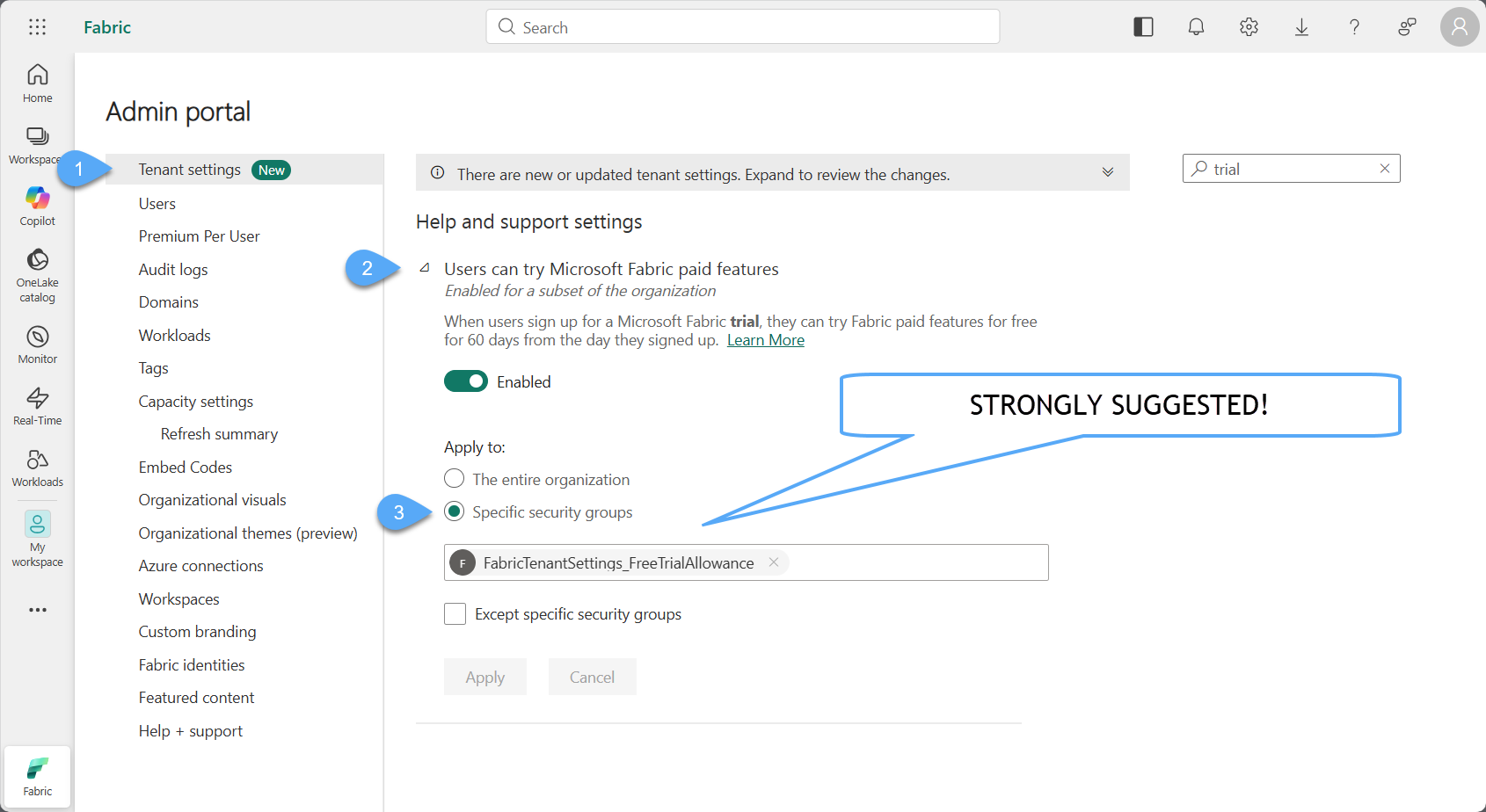
- Navigate to https://admin.fabric.microsoft.com - You need to member of Fabric Admin Entra's Id role, check my article below if you want to know how.
 Hector Sven
- Go to Tenant Settings Administrator
- Find and enable “Users can try Microsoft Fabric paid features” - This setting allows users to sign up for a Microsoft Fabric trial and access paid features for 60 days.
- Apply security group restrictions - It is strongly suggested!
Task 02: Enable Power BI Pro/PPU in Microsoft 365 Admin Center
- Navigate to https://admin.microsoft.com - You need to be Global Administrator or Billing Administrator.
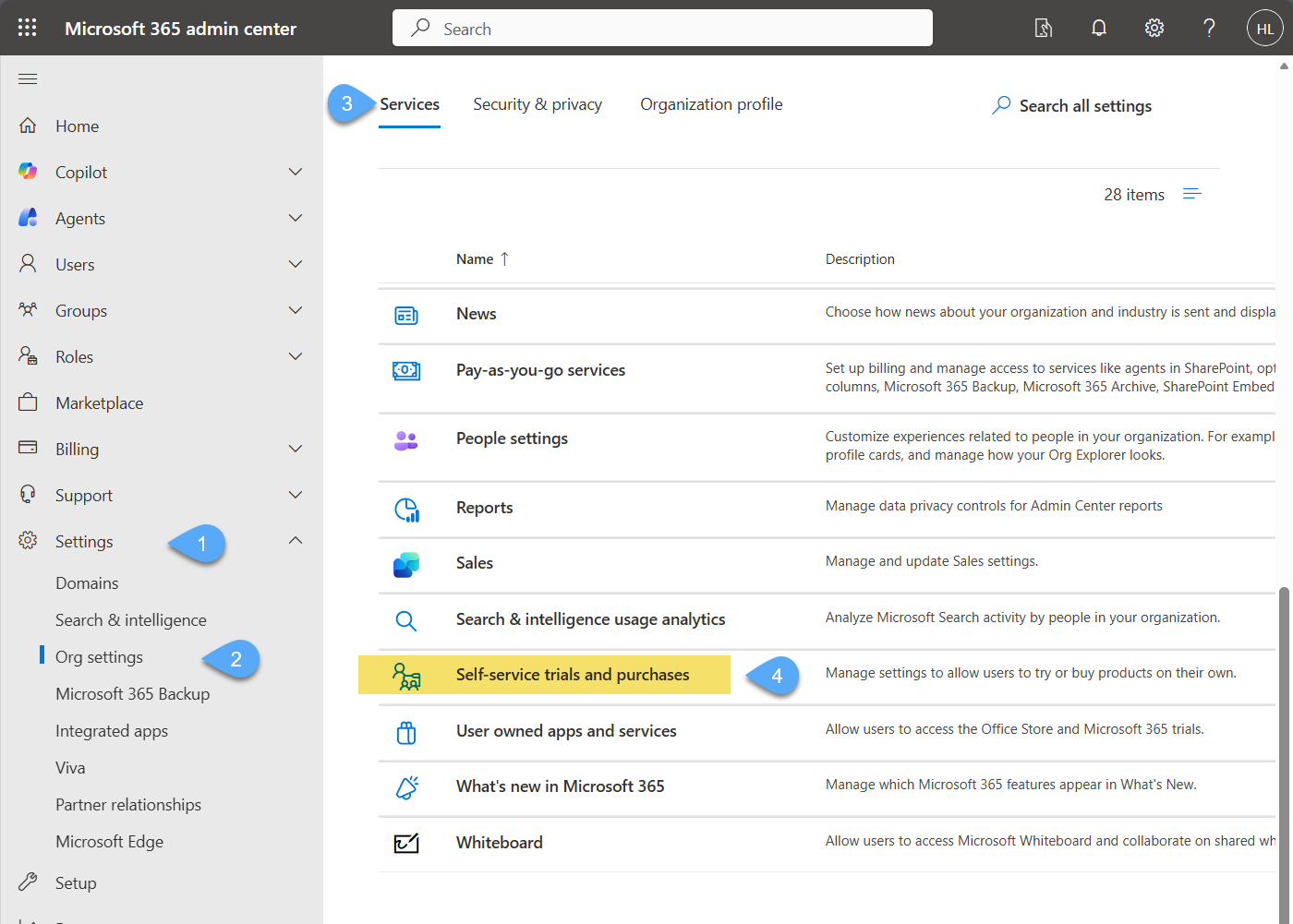
- Go to Settings → Org Settings → Services → Self-service trials and purchases
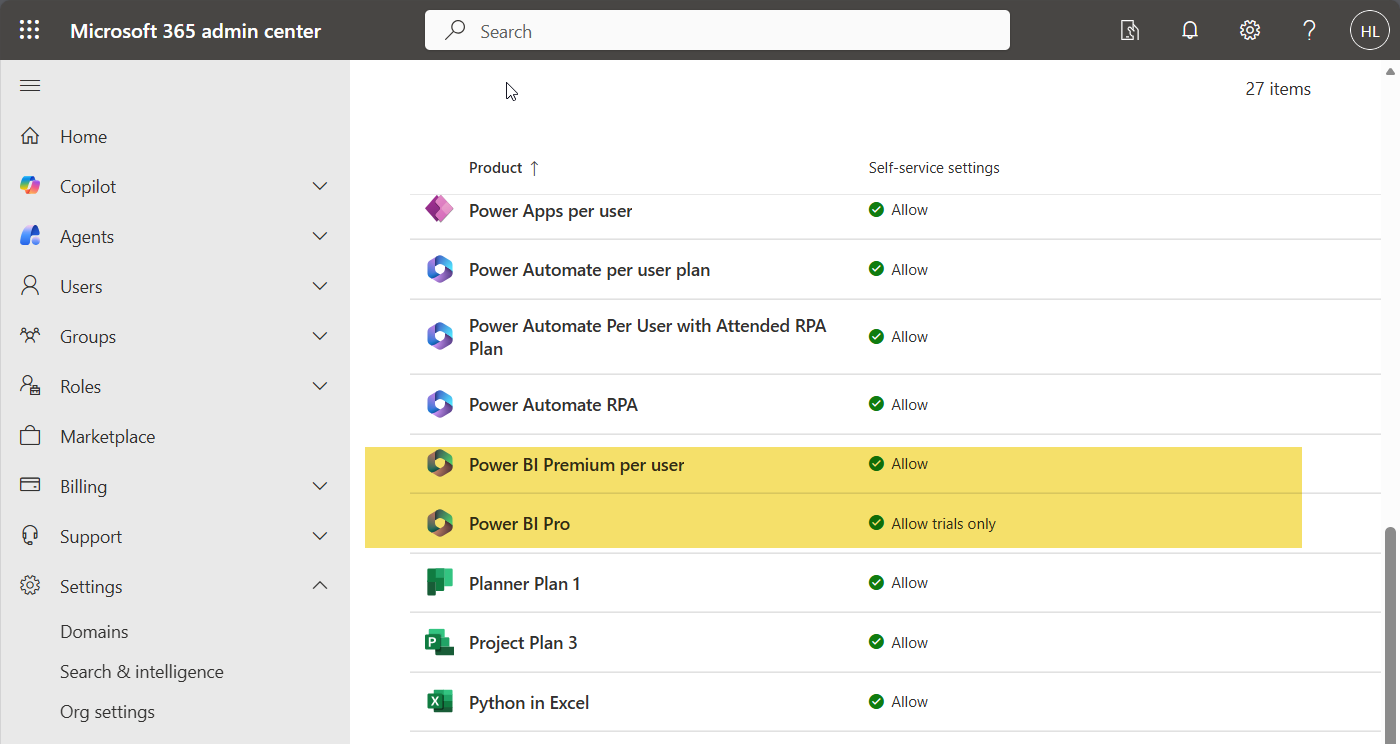
- Find and enable the “Power BI” product
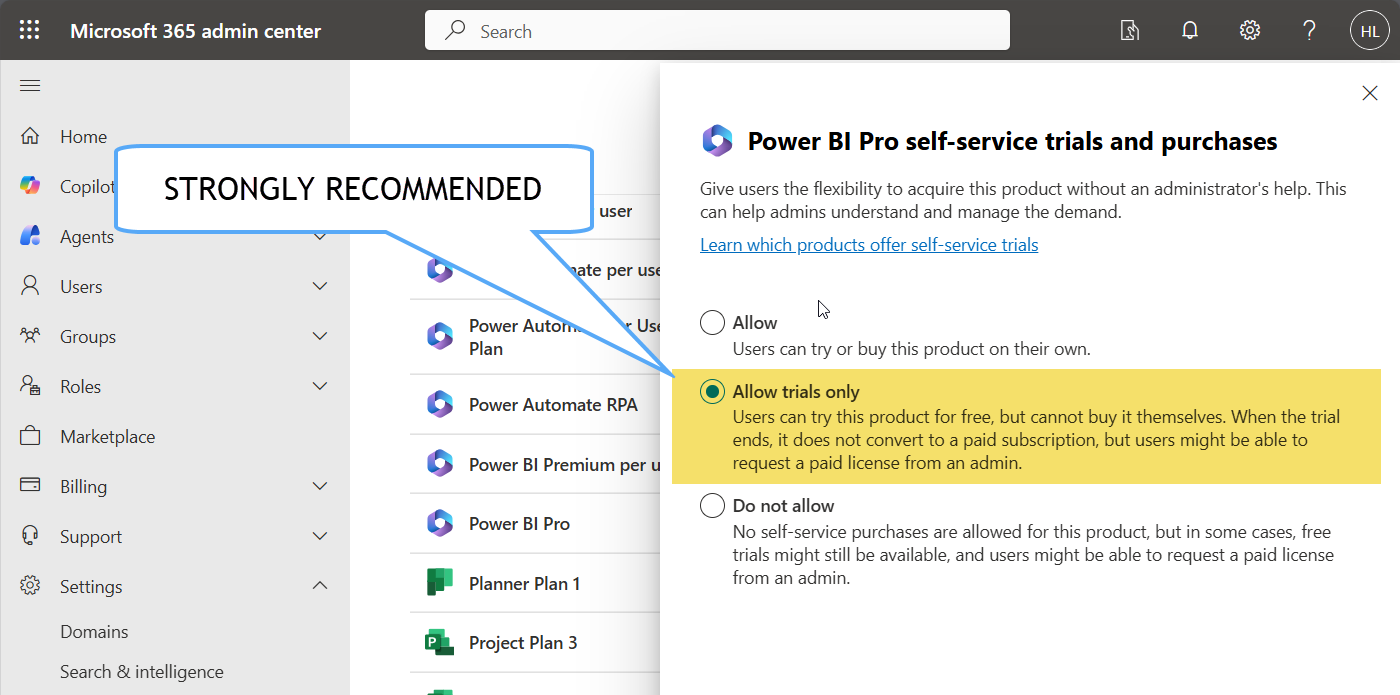
- Click and select "Allow trials only" - This would allow users to try the license/product for free but won't allowed them to buy anything.
Conclusion
Microsoft Fabric capacity trials are often misunderstood, once you understand that trial capacities are finite, tenant-scoped, and non-recoverable, the seemingly inconsistent behavior around missing trial buttons, blocked tenants, or purchase-only prompts suddenly makes sense. What appears to be an error is, in most cases, the result of intentional governance decisions or exhausted trial limits.
Whether you are an end user trying to get hands-on with Fabric, or a tenant administrator responsible for safeguarding limited trial resources, clarity is essential. Knowing your options — and their consequences — allows you to plan effectively, avoid irreversible mistakes, and choose the right path forward.